
Bulk Import: Generate hundreds of QR codes from a single CSV
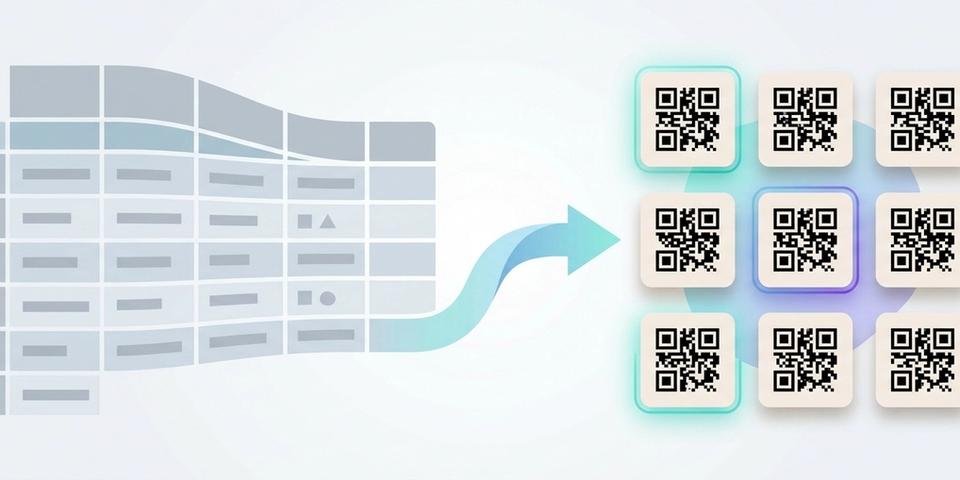
Skip the builder for repetitive runs — upload one CSV and let qrgeno create every Wi-Fi, voucher and link code in one pass.
- Create dozens or hundreds of QR codes in a single step
- Mix link, Wi-Fi and voucher codes in the same file
- Apply one shared design template to the whole batch
- Validate before importing — catch mistakes before any code is created
- Update existing QR codes by adding an id column
When the builder is too slow
The visual builder is great for a handful of codes. But some jobs don't fit that shape.
You're rolling out Wi-Fi QR codes to fifty hotel rooms. You're printing numbered table codes for every table in a restaurant group. You're running a voucher campaign with a unique code per partner location. Doing this one-by-one in the builder takes hours and invites typos.
Bulk Import is the answer: fill in a spreadsheet, upload it once, and qrgeno generates every code with the same design applied.
What Bulk Import is good for
Three scenarios where Bulk Import saves the most time:
• Many Wi-Fi codes — a hotel chain rolling out guest Wi-Fi per room, a coworking space labelling meeting rooms, a restaurant group deploying the same guest network across branches.
• Voucher campaigns — one code per partner, one code per location, or unique codes for a promotion. Each voucher gets its own redemption page and usage counter without touching the UI.
• Individual link QR codes at scale — numbered table menus, per-product landing pages, per-campaign tracking links, or any run where each code points to a slightly different URL.
Step 1 — Start from the template
Open Bulk Import in the dashboard and hit "Download template". You get a CSV with a header row and a few example rows showing every supported field.
The column names are the important part. qrgeno auto-detects the QR type per row based on which columns are filled in — you don't need to specify the type explicitly.
Step 2 — Understand the detection rules
Each row's type comes from its content:
• value column filled → voucher QR code • ssid column filled → Wi-Fi QR code • neither → link QR code (uses long_url)
That means one CSV can mix all three types. Row 1 might be a Wi-Fi code for the lobby, row 2 a voucher for a partner, row 3 a link to a menu — same file, same import.
Step 3 — Fill in link rows
For link QR codes you only need two columns: name and long_url. The name is how the code shows up in your dashboard. The long_url is where the code redirects.
Example:
name,long_url,description Table 1 Menu,https://menu.example.com/1,Ground floor Table 2 Menu,https://menu.example.com/2,Ground floor Table 3 Menu,https://menu.example.com/3,Mezzanine
Because these are dynamic codes, you can change the destination URL later without reprinting the QR — the redirect is stored on our side.
Step 4 — Fill in Wi-Fi rows
Wi-Fi codes are static — the SSID and password are encoded directly into the QR. That means you cannot change them later without regenerating the code, so type carefully.
Required columns: name, ssid. Optional: password, encryption (WPA, WEP, or nopass), hidden (true/false).
Example:
name,ssid,password,encryption,hidden Lobby Guest,CafeGuest,welcome2024,WPA,false Conf Room A,MeetingRoomA,present2024,WPA,false Conf Room B,MeetingRoomB,present2024,WPA,false
If encryption is nopass, leave the password column empty.
Step 5 — Fill in voucher rows
Voucher rows are the newest addition. Any row with a value column filled in becomes a voucher QR code.
Required: name, vendor_name, value, long_url (the redemption URL). Optional: service_name.
Example:
name,long_url,vendor_name,service_name,value Free Coffee — Partner A,https://shop.example.com/redeem/a,Cafe Acme,Coffee of the day,1 free coffee Free Coffee — Partner B,https://shop.example.com/redeem/b,Cafe Acme,Coffee of the day,1 free coffee
Each voucher gets the standard redemption defaults: one scan per day over a rolling three-day window, with a branded voucher landing page that shows usage count and validity.
Step 6 — Pick a design template
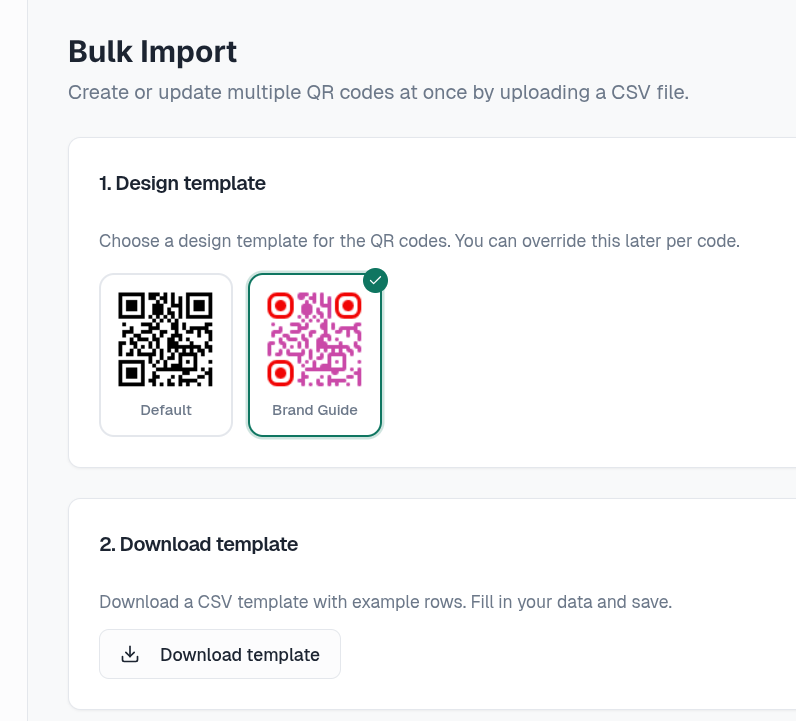
Before you upload, choose a saved design template in step 1 of the Bulk Import page. Every code in the batch gets that template — colours, frame, logo, corner style.
If you want different designs for different codes, run Bulk Import once per design. That's usually faster than editing each code individually afterwards.
Step 7 — Validate first, import second
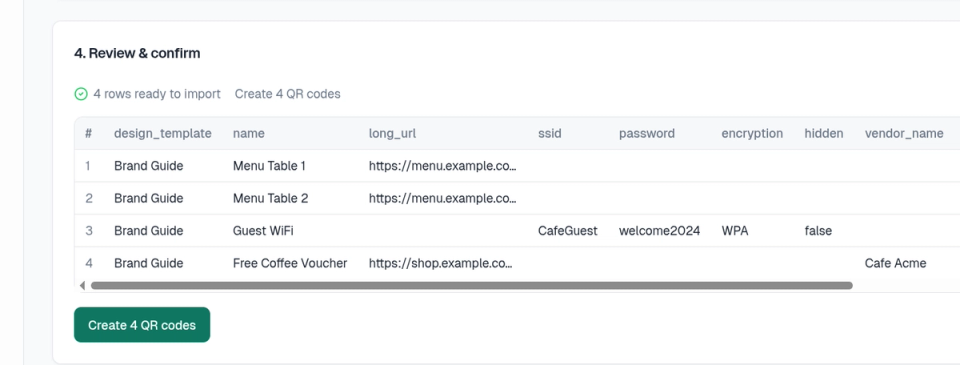
After uploading, qrgeno runs a validation pass before anything is created. Common issues it catches:
• Missing required fields (name, vendor_name for vouchers, ssid for Wi-Fi) • Invalid URLs • Wrong encryption type on Wi-Fi rows • Batch exceeds the quota on your current plan
Every error is reported with a row number, so you can fix the spreadsheet and try again without guessing. No QR codes are created until you explicitly confirm the import.
Bonus — Updating existing codes
Bulk Import also handles updates. Add an id column to your CSV and fill it with the id of an existing QR code. Rows with an id are updated; rows with an empty id are created.
This is useful when you need to retarget a batch of dynamic link codes — for instance, pointing last season's table menu codes at a new URL, or correcting a description across hundreds of codes in one go.
In short
Bulk Import turns "I need fifty QR codes" from an afternoon's work into a three-minute task. Download the template, fill in names and whichever fields each row needs, upload, validate, confirm. qrgeno handles generation, design, and — for vouchers — the redemption rules.
Mix Wi-Fi, vouchers and links in the same file. Validate before committing. Re-run with an id column to update in place. The builder is still there for one-offs, but when you need volume, the spreadsheet wins.
Sluta trycka om.Börja uppdatera.
- 5 400 kr
- Sparas i snitt / år
- 3 min
- Installationstid
- 249 SEK
- Starter