
QR codes for events and conferences
Serve the right schedule on the right day, in the attendee's own language — all from a single printed QR code on every badge and poster.
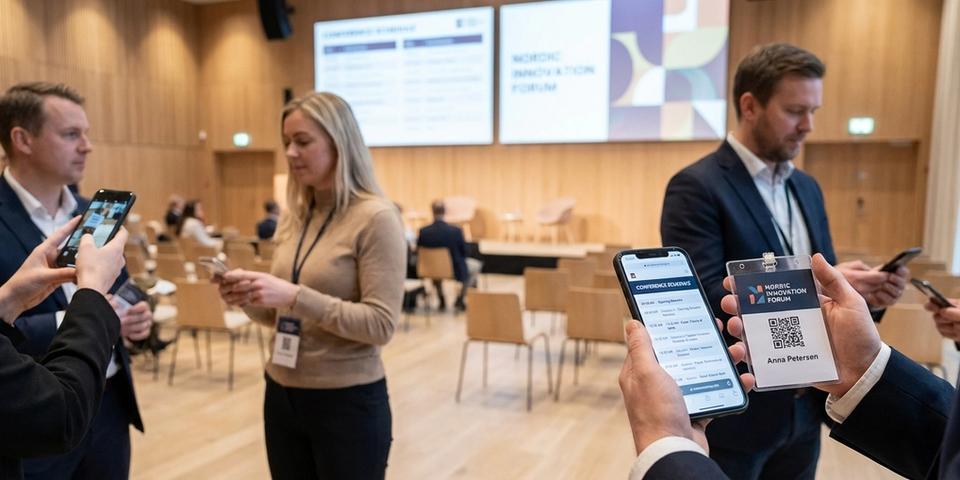
Key features for events & conferences
- ✓Detect the attendee's phone language and redirect to a schedule in Swedish, English, German, or any other language you support
- ✓Automatically switch the QR code destination each day using day-of-week rules — Monday shows Monday's schedule, Tuesday shows Tuesday's, and so on
- ✓Use date range rules to show the correct schedule for multi-day conferences spanning specific dates
- ✓Combine language and day rules — a Swedish attendee scanning on day two sees the Swedish version of day two's schedule
- ✓Update session details, room changes, or cancellations in real time without reprinting anything
- ✓Collect attendee emails before showing the schedule using an email gate rule for post-event follow-up
- ✓Track scan analytics to see which days and sessions drive the most engagement
How conference schedule QR codes work
A conference schedule QR code goes everywhere your event program does: attendee badges, posters, table tents, and signage across the venue. Its default destination URL is your main schedule page — typically the English overview of all days.
The clever part happens at scan time. Each time a badge is scanned, the code runs through its rules in sequence, starting with the calendar: a day-of-week or date range rule checks what day it is and redirects to that day's schedule. A browser language rule then reads the phone's language and picks the matching translation. Put the two together and Thursday's scans open Thursday's program in the scanner's own language — with no one updating anything mid-event.
If no rule applies, the attendee simply gets the default overview. There is no app to install — the phone camera does all the work, and the schedule appears instantly.
Language-based schedule routing
Say your delegate list splits three ways: international attendees who work in English, Swedish locals, and a keynote group flying in from Germany. One QR code serves all of them — no separate print runs per language.
The browser language rule reads the Accept-Language header on the attendee's phone, the same preference that decides what language websites load in. A phone set to German gets the German schedule; one set to Swedish gets the Swedish version.
Order the rules to match your audience:
- Browser language: de → German schedule
- Browser language: sv → Swedish schedule
- Default → English schedule (the international catch-all)
Each rule runs in allowlist mode with a single language code. The stack is checked from the top and stops as soon as a language matches, so anyone outside the listed languages — your English-working delegates included — falls through to the English default.
Example setup:
• Rule type: Browser language
• Mode: Allowlist
• Languages: de
• On match: Redirect to https://conference.com/programm-de
• On fail: Skip
Automatic daily schedule switching
A three-day conference has three different schedules. Instead of printing three QR codes or asking attendees to navigate to the right day, use day-of-week rules to automatically show the correct schedule.
Example for a Wednesday–Friday conference:
- Day of week: Wednesday → Redirect to Day 1 schedule
- Day of week: Thursday → Redirect to Day 2 schedule
- Day of week: Friday → Redirect to Day 3 schedule
- Default → Full conference overview page
On Wednesday, every scan goes to the Day 1 schedule. On Thursday, the same QR code shows Day 2. On Friday, Day 3. Before or after the conference, attendees see the full overview.
For conferences that span a weekend or repeat across weeks, use date range rules instead:
- Date range: June 10 → Day 1 schedule
- Date range: June 11 → Day 2 schedule
- Date range: June 12 → Day 3 schedule
- Default → Overview
Date range rules match exact dates, so there’s no ambiguity. The schedule always matches the calendar.
Example setup:
• Rule type: Day of week
• Days: Wednesday
• On match: Redirect to https://conference.com/day-1
• On fail: Skip
Combining day and language rules
Day and language rules become genuinely powerful together: each scan resolves to the right day's program in the right language, all from one code.
A bilingual Wednesday–Thursday conference (Swedish + English) looks like this:
- Day of week: Wednesday + Browser language: sv → Swedish Day 1 schedule
- Day of week: Wednesday → English Day 1 schedule
- Day of week: Thursday + Browser language: sv → Swedish Day 2 schedule
- Day of week: Thursday → English Day 2 schedule
- Default → English overview
On Wednesday, the code effectively asks the calendar first: it is Day 1, so only the Wednesday rules are in play. A Swedish local matches rule 1; an international delegate misses the language check, drops to rule 2, and reads Day 1 in English. Come Thursday, rules 1 and 2 no longer match at all — the date has moved on — and the same two attendees land on rules 3 and 4 for Day 2.
More languages just mean more rules per day: three languages across three days is nine rules, each simple on its own. Keep the day + language rules above the day-only ones, so the most specific match is always found first.
Real-time conference schedule updates
Conferences are unpredictable. Speakers cancel, sessions run late, rooms get swapped. With dynamic QR codes, you update the destination URL and every future scan reflects the change immediately. No reprinting, no announcements over the PA system hoping everyone hears.
Common scenarios:
• A speaker cancels — update that day’s schedule page to show the replacement or mark the slot as open
• A popular session moves to a larger room — update the room number on the schedule page
• An evening social event is added — add it to the schedule and attendees see it on their next scan
• Weather forces an outdoor session indoors — update the location in seconds
Because the QR code points to a URL you control, the schedule page is your single source of truth. Update it once, and every badge, poster, and sign in the venue immediately points to the correct information.
For critical updates, combine with an email gate rule. Attendees who submitted their email on first scan can receive push notifications about changes via your email marketing tool.
Getting started with your event QR code
- Register a dynamic QR code and point its destination URL at your main conference schedule page
- From the QR code detail page, open the Rules tab
- Schedule one day-of-week or date range rule per conference day, each linking to that day's schedule page
- Slot browser language rules above the day rules to serve translated versions
- Roll the code out across attendee badges, event programs, posters, table tents, and venue signage
- Follow scan analytics to see engagement per day and per session
Day rules alone are a solid opening act — bring in language rules once the multilingual schedules are ready. Rules can be added or adjusted at any point, mid-conference included.
Running a recurring event? Weekly meetups and monthly workshops reuse the exact same code: day-of-week rules repeat on their own, and all you refresh is the schedule page content before each edition.